Every Feature,
Explained
A closer look at every screen in OpenNetMeter. Numbered markers point at the exact control being described — match the number to the callout beside it.
01 / Live view
Main Window & Summary Tab
Everything lives inside one frameless window with its own tab bar and status strip — and the Summary tab is what greets you first: session usage, a weekly trend, and exactly which process is using your bandwidth. Also available in dark mode.
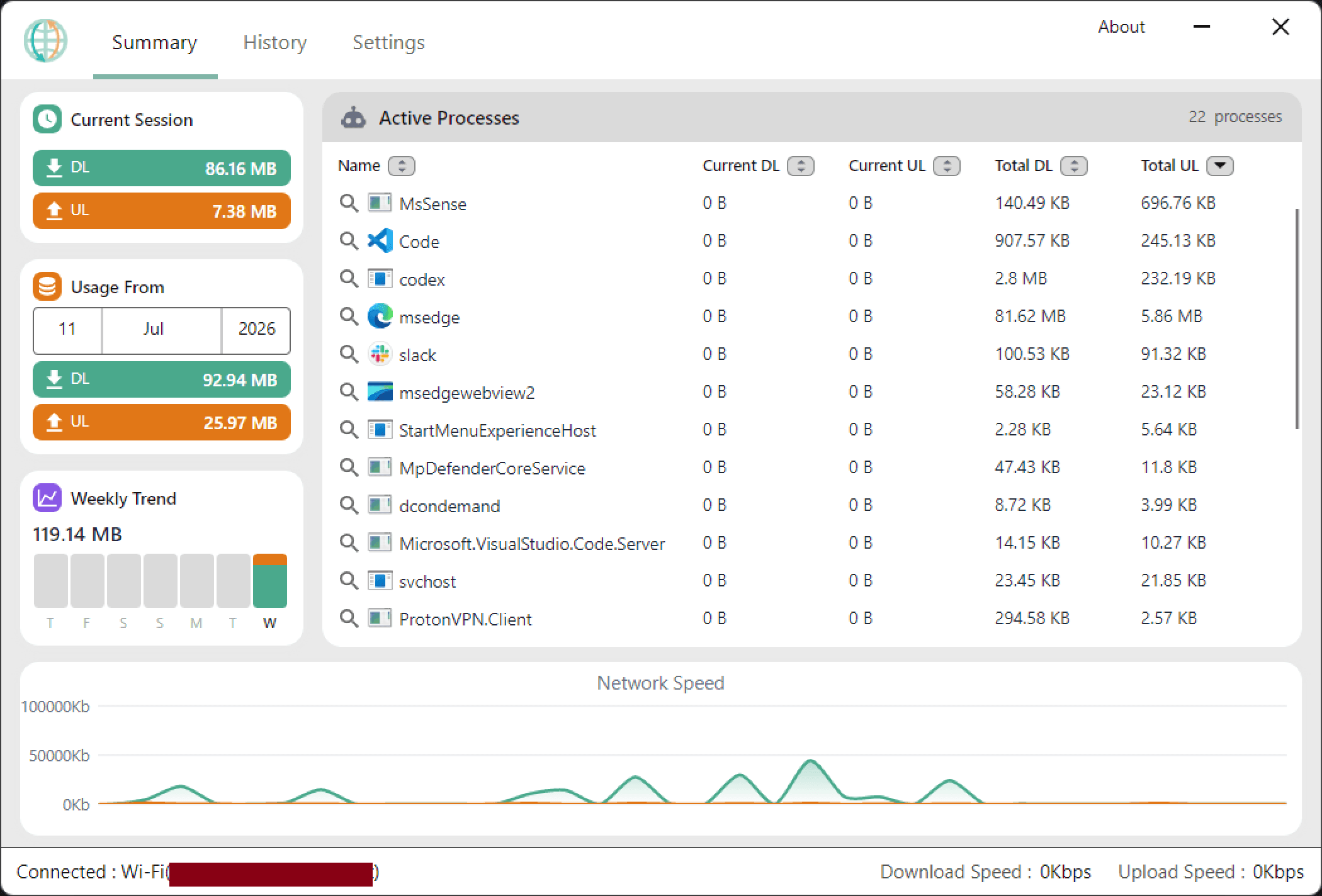
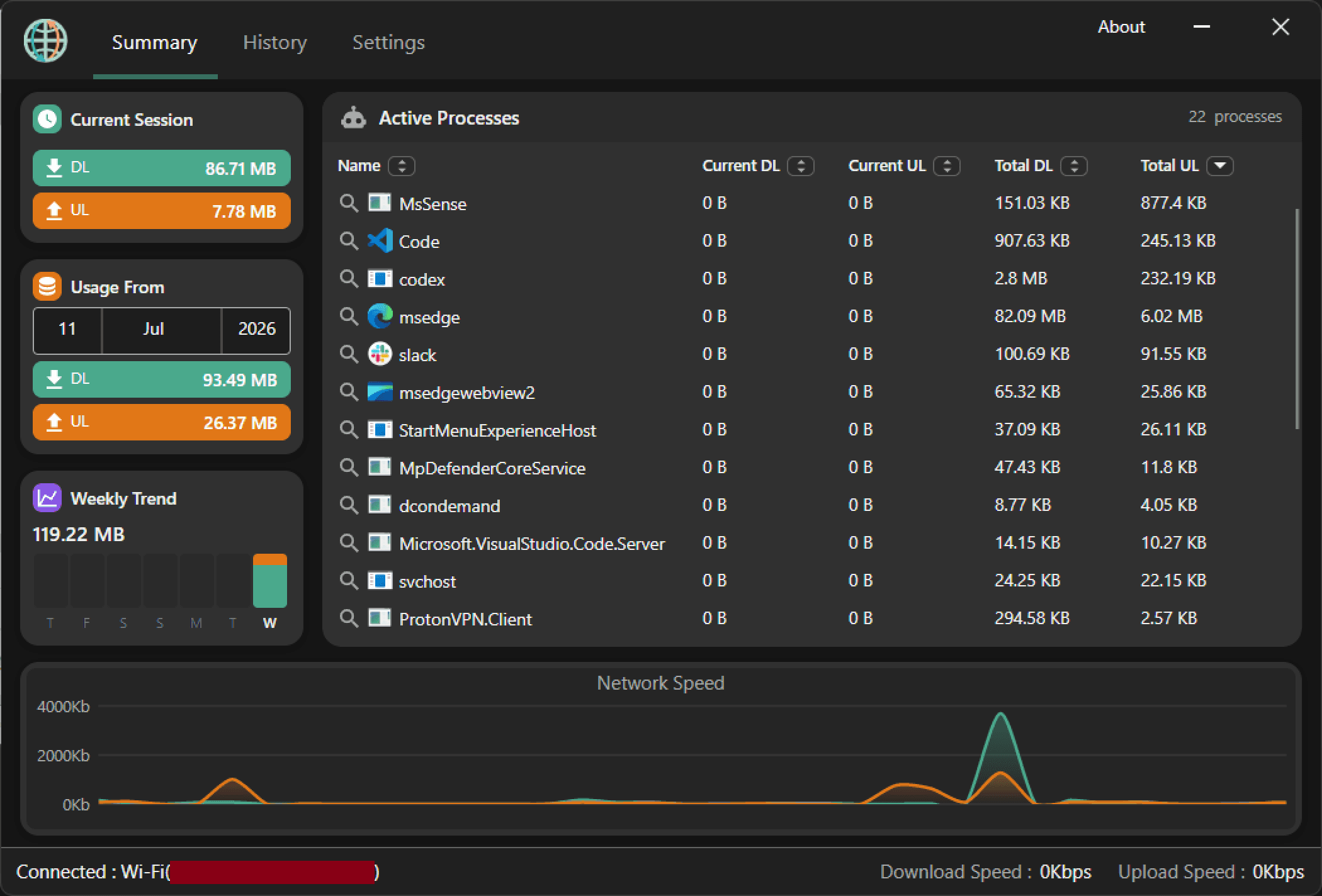 1234567891011
- 1
Tab bar
Switch between live stats, history, and settings instantly — no reload.
- 2
About
Opens version info and a direct link to file an issue.
- 3
Status bar
Live download and upload speed, always visible along the bottom edge.
- 4
Current Session
Tracks how much you've used since the app started — resets on relaunch.
- 5
Usage From
Pick any start date and see your running total from that point on.
- 6
Weekly Trend
This week's usage at a glance, with the change against last week.
- 7
Daily breakdown
Hover any day's bar for its exact download/upload split.
- 8
Active Processes
Every app using your network right now, refreshed every second.
- 9
Sortable columns
Click a header to rank apps by current or total usage.
- 10
Search online
One click to look up what an unfamiliar process is.
- 11
Speed chart
A rolling real-time graph of your download and upload speed.
02 / Looking back
History Tab
Filter any date range and see exactly what each app used, per network profile.
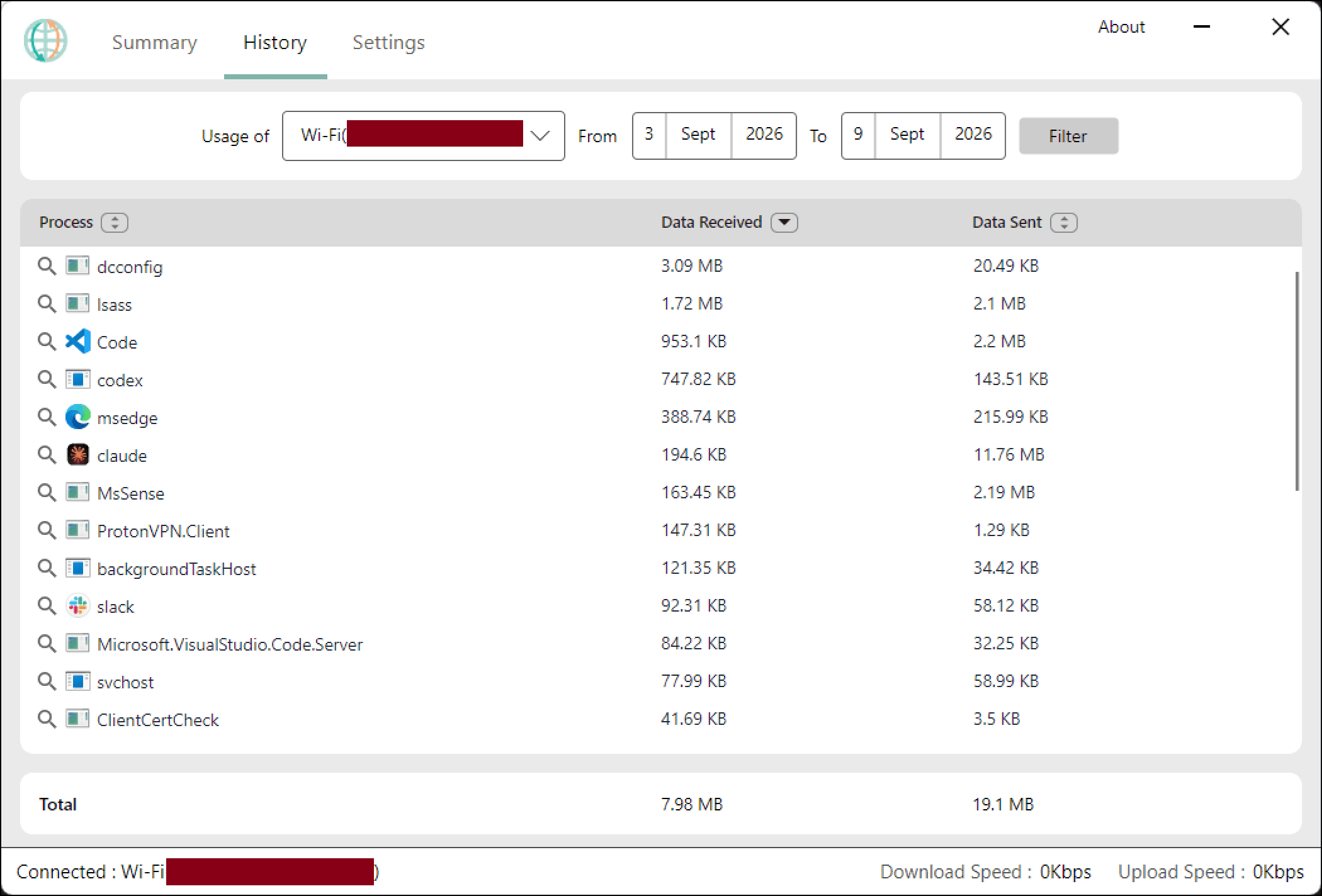 12345
12345- 1
Profile selector
Filter history by network adapter or connection profile.
- 2
Date range
Look back at usage for up to the last 60 days — older data is purged automatically.
- 3
Filter
Applies your date range and profile to refresh the table.
- 4
Sortable headers
Sort historical totals by process name, downloads, or uploads.
- 5
Totals
Combined download and upload totals for the selected period.
03 / Preferences
Settings Tab
Tune how OpenNetMeter runs, what it watches, and how it looks.
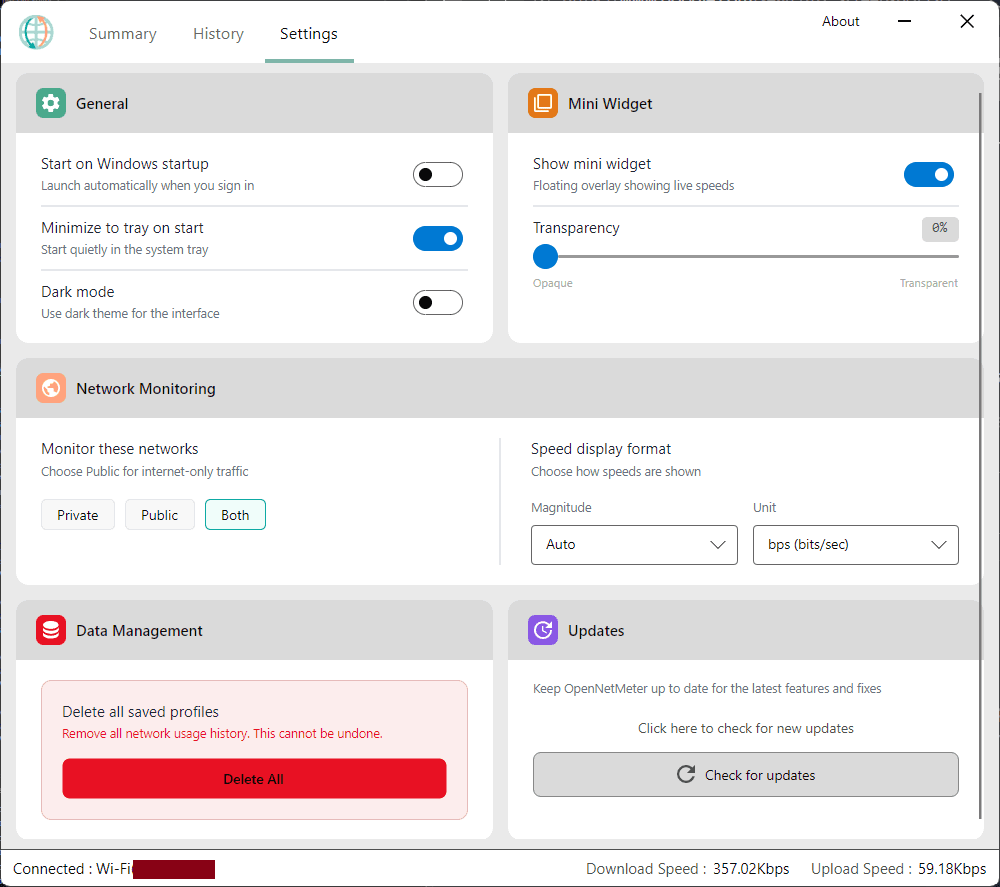 123456789
- 1
Startup launch
Have OpenNetMeter running the moment you sign in.
- 2
Minimize on start
Launch quietly in the background — no window pops up.
- 3
Dark mode
Switch the whole interface between light and dark instantly.
- 4
Mini widget toggle
Turn the floating speed overlay on or off.
- 5
Widget transparency
Fine-tune how see-through the mini widget is.
- 6
Network scope
Choose whether to track your private network, public traffic, or both.
- 7
Speed format
Pick the magnitude and unit speeds are shown in.
- 8
Delete all data
Wipes saved usage history, with a confirmation step first.
- 9
Updates
Check for and install the latest version in one click.
04 / Always on top
Mini Widget
A pocket-sized readout that floats over everything else on your desktop, in either theme.

 1234
12345Move it anywhere — position is remembered.
6Quick access to reopen the full app or hide the widget.
- 1
Download readout
Current download speed, visible without opening the main app.
- 2
Upload readout
Current upload speed, right beside your download rate.
- 3
Session totals
A running total for this session sits under each speed.
- 4
Pin button
Locks the widget on top of every other window.
- 5
Draggable chrome
Move it anywhere — position is remembered.
- 6
Right-click menu
Quick access to reopen the full app or hide the widget.
05 / Background
System Tray
Runs quietly in the background until you need it — right-click the tray icon for quick actions.
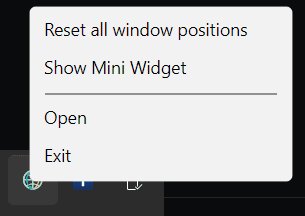 1234
1234- 1
Tray icon
OpenNetMeter keeps running in the background, one click away.
- 2
Reset window positions
Snap every window back on-screen if one ever drifts off-view.
- 3
Show Mini Widget
Bring the floating speed widget back from the tray.
- 4
Open / Exit
Reopen the main window, or fully quit the app.